
How to add someone to a photo
Someone missed the group shot. A friend was behind the camera all day. A grandparent couldn't make the trip. Whatever the reason, you have a photo with a gap in it, and a separate picture of the person who should be there. This guide covers three ways to put them together: a quick phone edit, a careful Photoshop composite, and an AI tool that does the blending for you.
Before you start: pick the right two photos
The method matters less than the photos you choose. A clumsy edit of two well-matched photos usually looks better than a perfect edit of two mismatched ones. Before you open any app, check these:
- Light direction. If the sun is coming from the left in the group photo, the person you add should be lit from the left too. Look at which side of the face is brighter and where the shadows fall.
- Camera height and angle. A photo taken from above (a phone held high for a selfie) won't sit well in a photo taken at eye level. Try to match it.
- Resolution. The photo of the person you're adding should be at least as sharp as the group photo. You can make a sharp image softer, but you can't make a blurry one sharper without it showing.
- How much of them you need. If everyone else is shown head to knee, you need a photo of your person head to knee as well. A tight headshot only works if they will be standing behind someone.
- Space in the frame. Find the spot where they'll go. The edge of a group, a gap between two people, or a place half-hidden behind a shoulder is easier to fill than the middle of the front row.
If you have several pictures of the person, choose the one whose light and angle are closest to the group photo, even if it isn't their best picture. Fit beats flattery here.
Method 1: On your phone
Phone editing has improved a lot. You can now get a decent result without a computer, as long as the two photos already match fairly well.
Step 1: Cut the person out
On an iPhone running iOS 16 or later, open the photo of the person in the Photos app and press and hold on them. After a moment they lift away from the background with a glowing outline. Tap Copy or drag them into another app. Many Android phones have a similar feature in the gallery app; long-press the person, or look for a cutout or "extract" option in the editor.
If your phone doesn't have this, most photo editing apps have a "remove background" or "cutout" tool that does the same job.
Step 2: Place them in the group photo
Open the group photo in an editor that supports layers or stickers, then paste the cutout on top. Pinch to resize and drag them into place.
Getting the size right is the part people most often get wrong. Compare head sizes: someone standing in the same row as the others should have a head about the same size as theirs. If they're meant to be standing behind the row, make them a little smaller and place them a little higher.
Step 3: Blend the edges and match the color
Use the eraser at low hardness to soften the outline, especially around hair. Then adjust the added layer only: brightness, warmth and saturation until their skin tone looks like it's under the same light as everyone else. Zoom out often. Edits that look obvious up close often disappear at normal viewing size, and the reverse is also true.
Where phone edits fall short
Phone tools are good at cutting people out and bad at shadows, light and overlap. If your person needs to stand behind someone, put an arm around someone, or cast a shadow on the ground, you'll usually need a desktop editor or AI.
Method 2: In Photoshop
Photoshop gives you full control. It takes longer, but it's the right choice when the photo matters and you want to decide every detail. The menu names below are from recent versions.
Step 1: Bring both photos into one document
Open the group photo. Then open the photo of the person, choose Select > Subject, and refine the selection with Select > Select and Mask. In that panel, brush over hair with the Refine Edge brush, then set output to New Layer with Layer Mask. Drag that layer into the group photo's document.
Step 2: Size and position
Press Cmd+T (Ctrl+T on Windows) for Free Transform. Hold Shift if your version doesn't keep proportions by default. Use the heads of the people around them as your measuring stick, and check where their feet would land. If feet are visible, they must touch the same floor as everyone else's.
Step 3: Overlap with masks
If the person is standing behind someone, don't erase pixels. Select the person in front (Select Subject on the group layer works well), then paint black on your added layer's mask inside that selection. The person in front now overlaps them, which is often what makes a composite believable. You can fix mistakes by painting white.
Step 4: Match color and light
Add adjustment layers clipped to your person (Alt/Option-click between layers to clip). A Curves layer fixes brightness and contrast. A Color Balance or Hue/Saturation layer fixes temperature. A useful check: add a temporary black-and-white adjustment layer above everything. With color removed, you can see straight away if your person is brighter or flatter than the rest.
For lighting that comes from one side, add a new layer set to Soft Light, clipped to your person, and paint with a large soft brush: light gray on the lit side, dark gray on the shadow side.
Step 5: Shadows
Create a layer under your person, set it to Multiply, and paint a soft dark shape where their shadow would fall, matching the direction of the shadows already in the photo. Lower the opacity until it matches. Add a small, darker contact shadow right where they touch the floor or the person next to them.
Step 6: Grain and sharpness
Photos from different cameras have different grain. If your added person looks too clean, add Filter > Noise > Add Noise at a low amount. If they look sharper than the rest, a light Gaussian Blur of half a pixel or so often fixes it.
Recent versions of Photoshop also include Generative Fill, which can repaint edges, fill gaps in a shoulder or hand, or extend a background after you've moved things around. It's handy for cleanup, though you'll still do the placing and light matching yourself.
Method 3: With AI
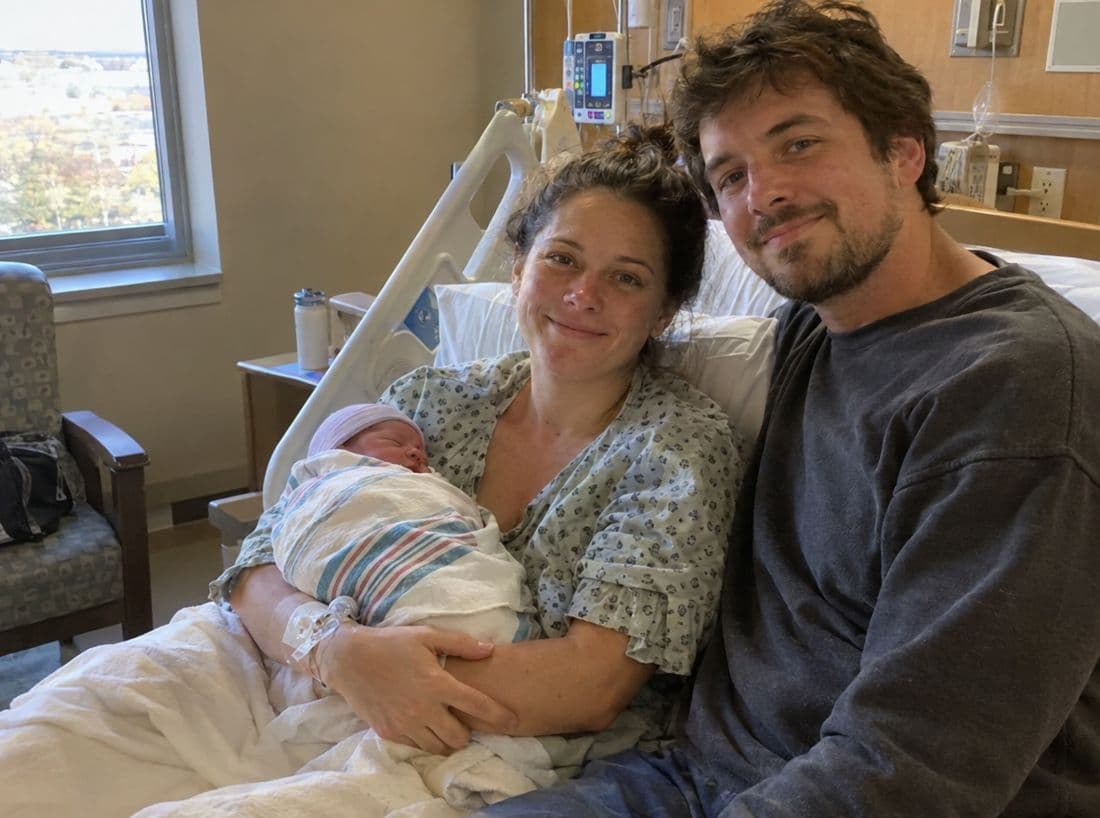
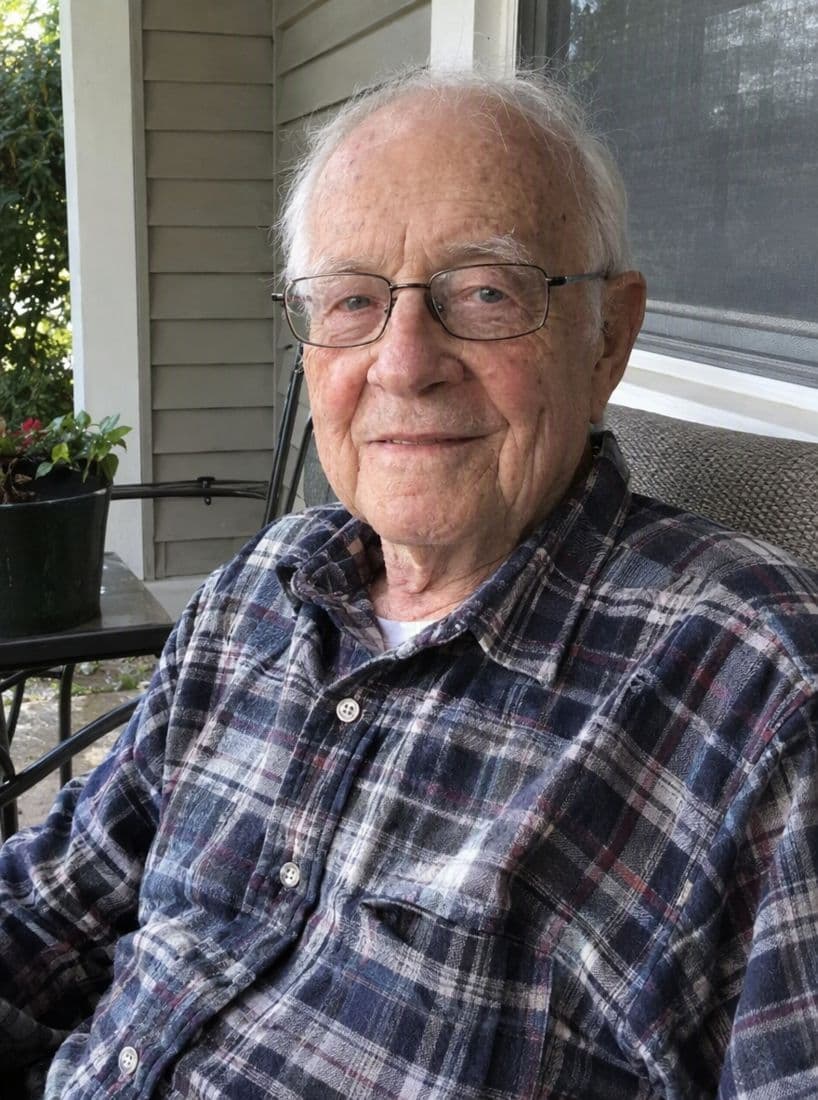
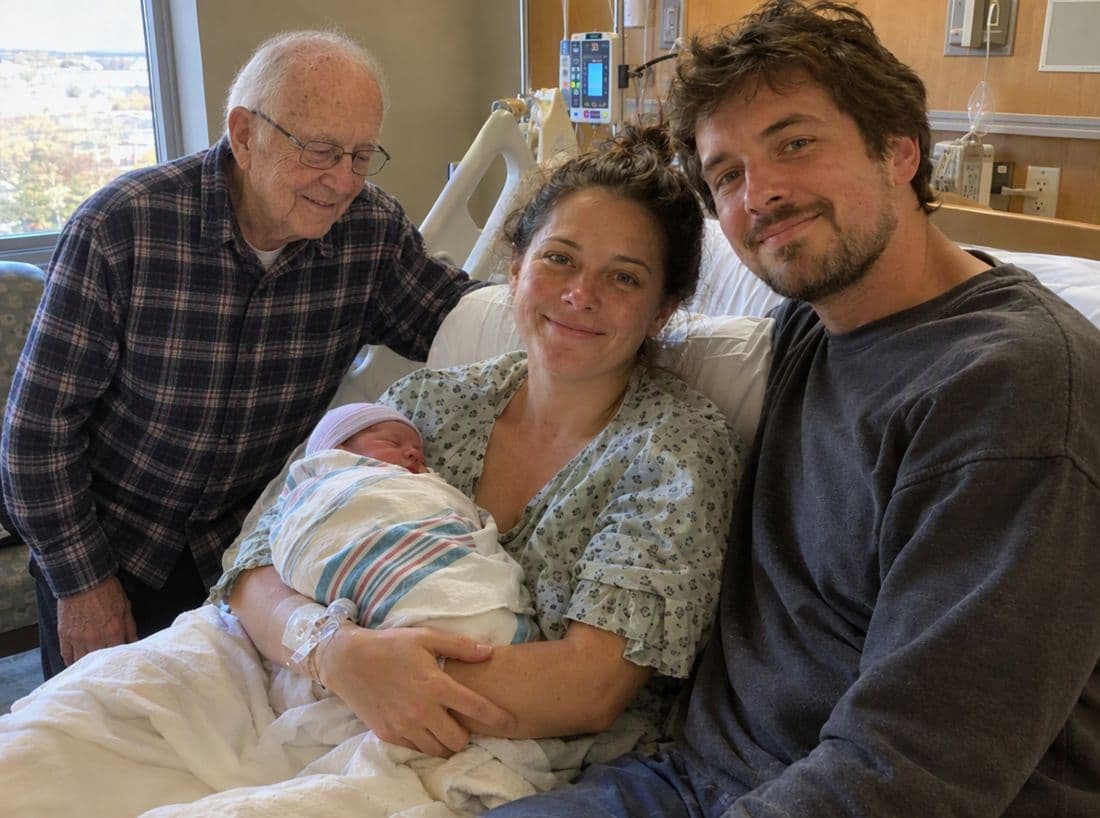
AI image models can now take a group photo and a picture of someone, and produce a new image with that person standing in the scene, lit like everyone else, with a natural shadow and the right overlap. By hand, light and contact take the longest to get right. That is where AI saves the most time.
How to get a good result
- Give it clear faces. Use a picture where the person's face is visible, well lit and not hidden by sunglasses or a hat. If you have more than one good photo, use them; it helps the model get the likeness right.
- Leave room. Pick a group photo with a natural spot for them. AI is better at filling an existing gap than at rearranging people.
- Check the details. Look closely at hands, ears, glasses and the edges of hair. These are where AI most often slips. Also check that no one else in the photo has changed, since some tools quietly alter the faces of people already in the shot.
- Generate a few versions. Results vary from one run to the next. Pick the best of several instead of trying to fix one.
What to watch for
Read the privacy terms before uploading family photos to any AI service. Look for how long photos are kept, whether they're used to train models, and whether you can delete them yourself. Some services also refuse photos of celebrities, which is a sensible rule.
Which method should you use?
Use your phone when the two photos already match well and you want something to share today. Use Photoshop when you want full control and have an hour or two, and some patience. Use AI when the light, angle or pose don't match and you'd rather not rebuild shadows by hand, or when you don't have editing skills and want a result that looks natural.
Adding a loved one who has passed
The most meaningful reason people add someone to a photo is also the hardest one. A grandparent who died before the grandchild was born. A dad who should have been at the wedding. A sister missing from the family photo for the first time.
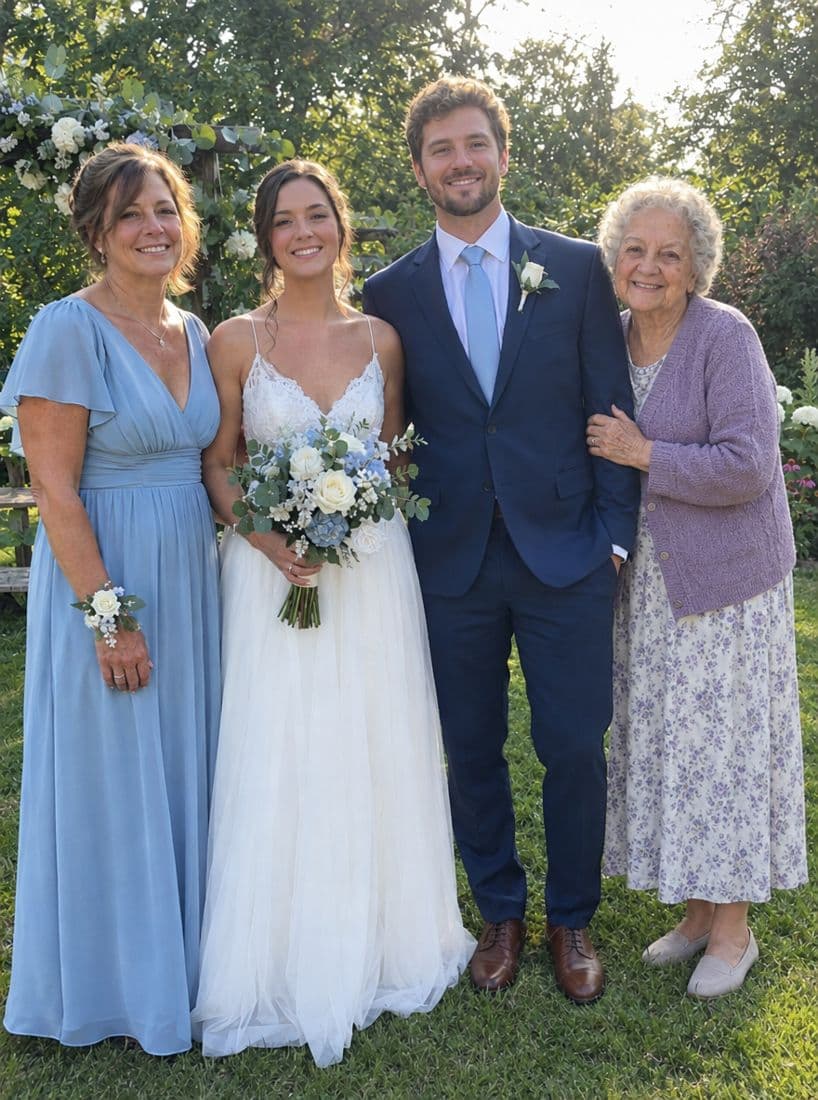
These edits are harder than adding a friend who missed the group shot, for a few reasons:
- The source photos are often old. You may have only a faded print, a scan, or a small digital photo from years ago. Color, grain and sharpness will be very different from a modern phone photo.
- Age is a choice. Should they appear as they looked in the photo you have, or as they would look now? Many families prefer the person as they remember them. Decide before you start.
- Small mistakes hurt more. A slightly wrong face on a friend is funny. On a parent who has died, it can be upsetting. Take your time and use the clearest photos of them you have.
Some practical tips. Scan old prints at a high resolution instead of photographing them with your phone, which introduces glare. If the photo of your loved one is black and white and the family photo is in color, you can either color them in or turn the finished photo black and white; both can look lovely. For a print you'll frame, ask someone close who didn't see the original to look at it. If they don't notice anything, you're done.
If you'd like help with this, we built a service just for it. You upload the photo and a few pictures of the person you miss, and we add a deceased loved one to a photo while keeping everyone else exactly as they were. You see three free previews before deciding anything.